Workflow Design
How to Automate Email Triage With AI
To automate email triage with AI, let the model sort, prioritise and draft replies while a human approves everything before it is sent, so you clear your inbox in a fraction of the time without handing your reputation to an autopilot.
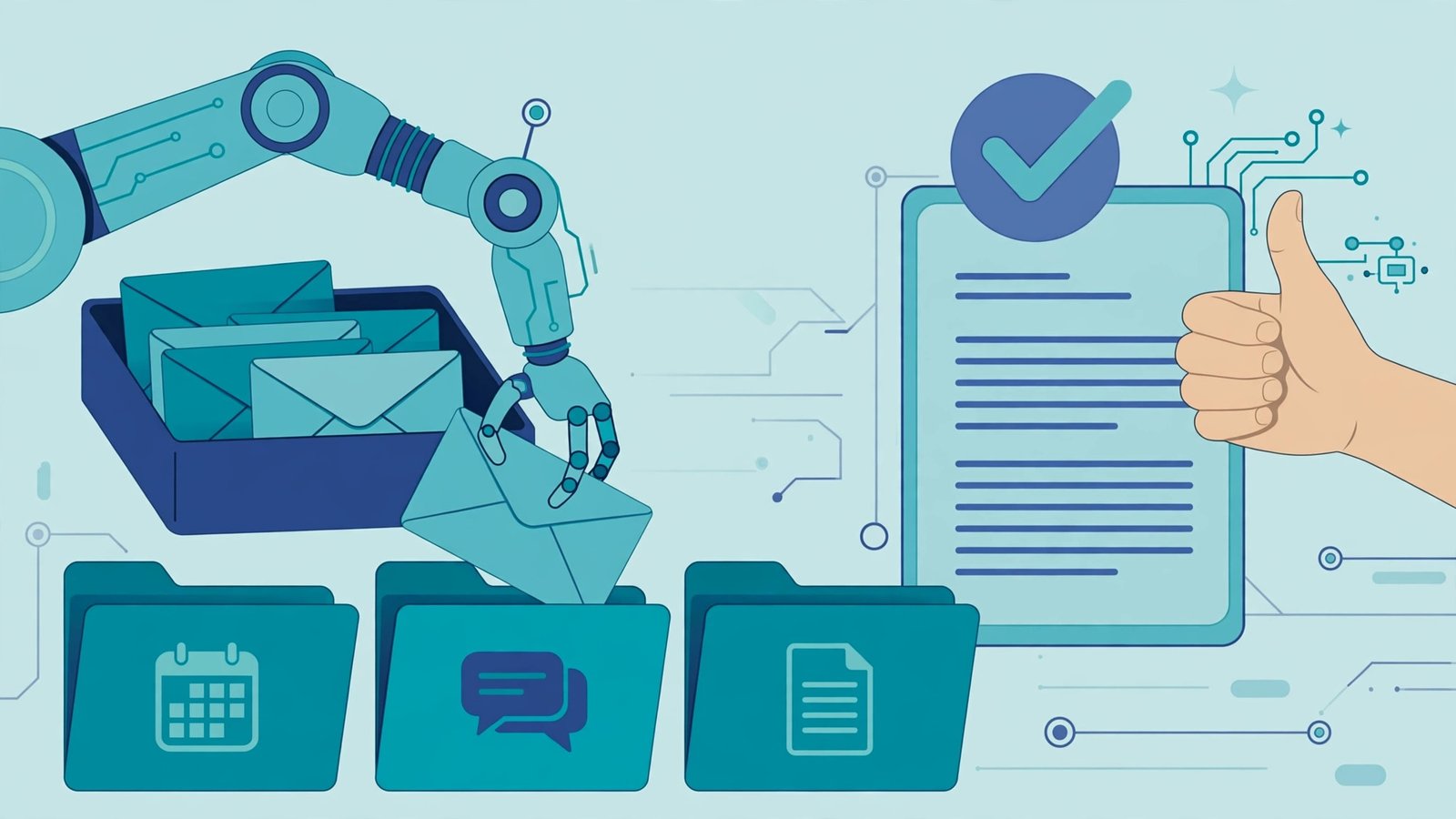
To automate email triage with AI, let the model sort, prioritise and draft replies while a human approves everything before it is sent, so you clear your inbox in a fraction of the time without handing your reputation to an autopilot. The pattern is deliberately boring: the AI labels each message, drafts a reply where one is needed, and files the rest. Nothing leaves your account without a human tapping send. That single rule separates a triage system you can trust from an autopilot that will eventually embarrass you. I tested this on a shared support-and-sales mailbox receiving roughly 300 messages a week: the morning sort went from about 45 minutes to roughly 10 minutes of reviewing drafts. The rest of this guide shows how to set that up, what to automate first, and where to draw the line.
What does AI email triage actually do?
Email triage is the work you do before you do the work: deciding what each message is, how urgent it is, and what happens next. AI email triage automates that first pass. A model classifies each incoming message, assigns a priority, and prepares the next step — usually a draft reply or a task. What it does not do, in a safe setup, is decide outcomes. It does not promise refunds, quote prices, cancel orders, or close tickets. Those are decisions, and decisions stay with people. When teams get this boundary wrong, they get fast replies that are confidently wrong — and one wrong refund promise costs more trust than a hundred slow ones.
What should you label first?
Start with five labels, not fifty. A label set that is too clever collapses within a week, because nobody can remember which label means what and the model starts guessing between near-identical options. These five cover nearly every small-team inbox:
- Act now — a customer is blocked, a deadline is today, or money is involved.
- Reply today — a genuine question or request that deserves an answer within one working day.
- Waiting on someone else — you have replied and are awaiting an answer, or the message needs a colleague.
- FYI / file — newsletters, receipts, notifications and updates that need no reply.
- Needs a human first — complaints, legal or billing disputes, and anything the model is unsure about.
That last label is the safety valve. Every classification prompt should include an explicit instruction: when confidence is low, or when the message mentions refunds, cancellations, legal threats, or account closures, label it “Needs a human first” and draft nothing.
How do you build the label-then-draft workflow?
You can build this with tools you already have: a no-code automation platform (Zapier or Make) plus a language model, on top of Gmail or Outlook. The workflow has four steps:
Step 1: Trigger on new mail. The automation fires when a message lands in the inbox, excluding anything already labelled.
Step 2: Classify with a fixed prompt. Send the sender, subject and body to the model with a short, strict prompt: pick exactly one of the five labels, give a one-line reason, and flag urgency on a 1–3 scale. Ask for structured output so the automation can route on it reliably rather than parsing free text.
Step 3: Draft, don’t send. For “Act now” and “Reply today” messages, the model writes a draft reply in your account, using your own past replies as style examples. Give it two or three of your best real replies as examples and forbid it from inventing facts: no prices, dates, or policy statements not in the message or your knowledge base.
Step 4: Route and file. The automation applies the label, stars “Act now” items, files “FYI / file” messages out of the inbox, and leaves “Needs a human first” messages unread at the top. Your morning routine becomes a review queue: approve or edit drafts, handle the human-first pile, and archive the rest.
One detail people miss: strip signatures and quoted history from the text before it reaches the model. Long quoted threads waste tokens and confuse classification, because the model starts classifying the oldest message in the thread instead of the new one. Send only the newest message body.
How do you keep a human in the loop without slowing everything down?
The fear is that human approval cancels out the time saved. In practice it does not, because reviewing a good draft takes seconds while writing one from scratch takes minutes. The trick is to batch the review into two fixed windows a day — say 9:00 and 15:00 — where you work through the draft queue in one pass.
Outside those windows, the system keeps labelling and drafting. Set an approval rule: drafts older than one working day get escalated to “Needs a human first”, and low-confidence drafts go to the top of the review queue.
In my test week, about 7 in 10 drafts needed no edit, roughly 2 in 10 needed a sentence changed, and 1 in 10 was wrong enough to rewrite — almost always because the sender’s request was ambiguous. That ratio is the honest shape of a working system: it removes the typing, not the thinking.
How do you measure whether it worked?
Measure three numbers for two weeks before you change anything, then for two weeks after. First, time to inbox zero each morning. Second, first-response time on genuine customer messages. Third, misrouted messages — items labelled wrongly or drafts that needed a full rewrite. If the first two fall and the third stays under about 1 in 10, the system is earning its keep.
Cost is rarely the blocker: at a few hundred messages a week, model calls cost a few dollars a month, and the automation platform’s plan is usually the bigger line item. Compare that against the hour a day the manual sort was eating.
The label taxonomy: five labels, two kinds
Five labels cover nearly every small-team inbox, and the taxonomy works because it separates two different questions: how urgent is this, and what is it about? Give every email exactly one status label and at most one topic label. A message with two statuses is a message nobody can prioritise, and a list of twelve topics is just the sorting problem moved one level down.
| Status label | What lands here | What you do next |
|---|---|---|
| Act now | A customer is blocked, a deadline is today, or money is involved | Handle it before anything else; the AI drafts, you send |
| Reply today | A genuine question or request that deserves an answer within one working day | Work through in the day’s reply batch |
| Waiting on someone else | You have replied and are awaiting an answer, or the message needs a colleague | Route it to the right person; chase on a schedule, not by memory |
| No reply needed | Receipts, confirmations, automated notifications | File it; the AI never drafts a reply for these |
| File and ignore | Newsletters, marketing, anything that is not work | Archive without reading; review the rule weekly so real mail never lands here |
Topic labels are the second kind, and they stay short: five to seven topics at most — Sales, Support, Billing, Suppliers, Legal, Finance, and one for your main project. Pick the list before you build the workflow, and resist adding a topic for every new sender. Every label you add is a decision the model has to make, and every near-duplicate label is a coin toss. If two labels could plausibly fit the same email, merge them.
Rules first, AI second: pick the right layer
Not every email needs the AI. The cheapest triage system has three layers, and each layer only handles what the layer below it cannot. Built-in filters are free and never wrong about a known sender; built-in AI is good at summarising and drafting inside Gmail or Outlook; a workflow platform earns its keep only on the ambiguous remainder — the messages that match no rule and need a judgement call. Before you pay for a tool, decide which workflow you are automating: our guide to choosing your first automation walks through that choice, and the cost-per-task math in Zapier vs Make for AI automation shows what each platform actually costs at small-business volume.
| Layer | Handles | Cost | Limitation |
|---|---|---|---|
| Built-in filters and rules | Known senders, newsletters, receipts, obvious routing | Free, already in Gmail and Outlook | Cannot read intent or tone |
| Built-in AI (Gemini in Gmail, Copilot in Outlook) | Summaries, draft replies, prioritisation inside the mailbox | Included with Google Workspace / Microsoft 365 | Stays inside one mailbox; no cross-app routing |
| AI workflow (Make, Zapier, n8n) | Reads every new email, labels by meaning, drafts replies, logs leads | Make Core from $12/month on annual billing; verify the current price on the vendor pricing page before you buy | Needs a weekly mislabel check until it proves itself |
One rule governs all three layers: never let an urgency label silently become a business decision. A short email from an important customer can matter more than a long message the model scored urgent, so urgency labels sort the queue — they never send, archive, or agree to anything on their own. Map the flow before you build it: mapping your business process first means the labels match how work actually moves through the team, not how you wish it did.
Run a 30-message dry run before you go live
The fastest way to trust a triage workflow is to watch it work without letting it touch anything. Run it in dry-run mode on your next 30 incoming messages: the AI labels and drafts, but changes nothing in the mailbox. Then correct every call it got wrong, and treat each correction as a lesson — a new rule, a clearer label definition, or one more example in the classification prompt.
- Dry run (day 1): AI labels and drafts only. Nothing is labelled, archived, or sent. Read all 30 outcomes and mark each one right or wrong.
- Correct and tighten (day 2): turn every wrong call into a fix — merge two confusing labels, add a rule for a known sender, or rewrite the prompt line that misled the model.
- Go live on one label (week 1): let the workflow handle only the safest category, such as “No reply needed”, while you keep sorting the rest by hand.
- Expand, then audit weekly: add one label at a time. Once a week, open ten messages the AI labelled and check them by hand — a weekly check of what falls into the wrong category keeps the rules accurate as the inbox changes.
If the dry run shows the model guessing on more than a handful of messages, the problem is almost always the label set, not the model. Fewer, sharper labels fix more than a bigger model does.
What should AI never touch in your inbox?
Draw the line in writing before you switch the workflow on. AI triage should never send a message on its own, never act on payment or refund requests, never reply to legal or regulatory correspondence, and never delete anything — archiving is reversible, deletion is not. Route password resets and account-recovery emails to a human immediately. These rules are what let you trust the system.
Email triage at a glance
| Item | Detail |
|---|---|
| Core rule | AI labels each message and drafts replies where needed; a human approves before anything is sent, and nothing leaves without a human tapping send. |
| Tested result | A shared support-and-sales mailbox at roughly 300 messages a week; morning sort fell from about 45 minutes to roughly 10 minutes reviewing drafts. |
| Setup | One focused afternoon: define five labels, write the classification prompt, connect the automation, and run on a test label for a day first. |
| Works with | Gmail and Outlook (triggers and labelling actions; drafts without sending). |
| Never auto-send | Never auto-send to customers without approval. |
| Keep out | Keep HR, legal and finance mailboxes out of the automated flow until provider data terms are confirmed in writing. |
Frequently asked questions
Will AI email triage work with Gmail and Outlook?
Yes. Both expose the triggers and labelling actions no-code platforms need, and both let an automation create drafts without sending. Only the exact button names differ.
How long does it take to set up AI email triage?
A basic label-then-draft workflow takes one focused afternoon: define five labels, write the classification prompt, connect the automation, and run it on a test label for a day first.
Can AI triage reply to customers automatically?
It can, but it should not — not without approval. Auto-sending turns every model mistake into a customer-facing mistake. Drafting plus human approval keeps almost all of the speed and removes almost all of the risk.
Is my email content safe when it goes to an AI model?
It depends on the provider and plan. Use a business plan with a no-training commitment where available, strip quoted history and attachments before sending text to the model, and keep sensitive mailboxes — HR, legal, finance — out of the automated flow until your provider’s data terms are confirmed in writing.
How many labels should I create?
Five to seven status labels, plus at most one topic label per email. More labels do not mean better sorting — they mean the model has to choose between near-identical options, and every extra label is another chance to guess wrong. If two labels could fit the same email, merge them.
Can I automate email triage for free?
Yes, for a small inbox. Built-in Gmail and Outlook filters cost nothing and handle the obvious cases. A Make free tier covers light volume, and the built-in AI in Gmail and Outlook comes with Google Workspace and Microsoft 365. You only need a paid plan when volume grows past the free tier or you need cross-app routing.
What should I do when the AI mislabels an urgent email?
Treat it as a training signal, not a one-off. Correct the label, then turn the correction into a rule or a prompt example so it does not happen again — and keep a weekly mislabel check until the error rate stays low. High-risk mail stays draft-only: the AI never sends, archives, or agrees to anything without a human approving it first.
Continue learning
- AI-to-Human Handoff: 7 Rules for When Your Chatbot Should Hand Over to a Person
- How to Automate Meeting Notes With AI (Transcript to Action Items)
If anything in this guide looks wrong or out of date, tell us and we will fix it.